

A sound Google Analytics 4 setup comes down to a few things done in the right order. Create the account and property, add a web data stream, confirm the tag is firing, review the events GA4 collects on its own, mark your business goals as key events, exclude internal traffic, and test everything before you trust a report. This checklist walks through each step, with what to do, why it matters and how to confirm it worked.
It is written for owners, marketing leads and teams who want clean numbers without becoming analytics engineers. Think of GA4 as plumbing: nobody admires it when it works, and everyone notices when it leaks. A few hours of care now saves months of reports you cannot rely on.
TL;DR
- Set up in this order: account, property, data stream, tag, events, key events, filters, testing.
- Use GA4’s automatic, enhanced measurement and recommended events before inventing custom ones.
- Mark only the actions that matter to revenue as key events.
- Exclude your own team’s traffic and test with DebugView and Realtime before trusting any data.
- Settings changes apply going forward, so fix problems early. Historical data is not rewritten.
Table of Contents
- Before you touch GA4: decide what you need to measure
- The GA4 setup checklist, step by step
- Quick reference: setup checklist you can copy
- When to consider server-side tagging
- Our perspective: measure less, but trust it more
- Need a hand with measurement?
- Common GA4 setup mistakes to avoid
- FAQ
- Sources
Before you touch GA4: decide what you need to measure
Most broken setups share one root cause: the tag went in before anyone decided what success looks like. Spend 20 minutes on this first.
- Write down three to five business outcomes. For a service business that might be form submissions, phone-call clicks and booked consultations. For a store it is purchases, add-to-cart and checkout starts.
- Map each outcome to a page, button or event. “Form submitted” is a thank-you page view or a form event. “Call clicked” is a click on a phone link.
- Name who will use the data. Owners usually want a handful of numbers. Marketing teams want channel and campaign detail. That decides how much configuration you need.
- Gather access. You need edit access to your website or tag manager, and an administrator-level Google account that will own the property. Use a shared business login, not one employee’s personal account.
If you want a broader view of which numbers deserve a place on a dashboard, our guide to digital marketing performance metrics covers how to choose them.
The GA4 setup checklist, step by step
Step 1: Create the account and property
In Analytics, an account is the top-level container, and properties live inside it. Google’s setup guide for a website and/or app starts with creating an account (unless you already have one) and then a property. Use one account per business, and a separate property for each distinct website or app you want reported separately.
While you are in the property settings, enter your business name, the correct reporting time zone and your currency. Getting these wrong skews daily totals and revenue figures, and you cannot retroactively fix the data already collected.
Check: the property name is clear (for example, “Company Name – Main Site”), and time zone and currency match how your finance team reports.
Step 2: Add a web data stream
A data stream is the connection between your site and the property. Create a web stream with your site’s primary domain. GA4 gives you a measurement ID that starts with “G-”. Keep it handy, because the next step needs it.
If you also run an app, add a separate app stream. Google’s beginner guide for small businesses explains the property and stream relationship in plain terms.
Check: the stream shows your correct URL and a measurement ID you have copied somewhere safe.
Step 3: Install the tag
You have three common routes:
| Method | Best for | Trade-off |
|---|---|---|
| Platform integration (WordPress, Shopify, Squarespace and similar) | Small sites that need basic tracking fast | Quick, but limited control over events |
| Google tag pasted into your site’s header | Simple sites with a developer on hand | Every change needs a code edit |
| Google Tag Manager | Teams that will add events over time | Takes an hour to learn, saves many later |
For most growing businesses we recommend a tag manager, since it keeps tracking changes out of your site code and gives you version history. Install it once, then add GA4 as a tag inside it.
Check: open your site in a browser while looking at Realtime in GA4. Your own visit should appear within a minute or two.
Step 4: Review what GA4 collects automatically
You do not need to build everything. Google’s documentation on event types groups events into four categories:
| Event type | Setup needed | What it covers |
|---|---|---|
| Automatically collected | None | Basics such as page views and sessions |
| Enhanced measurement | A toggle in the data stream | Common interactions such as scrolls and file downloads |
| Recommended | You implement them with Google’s names and parameters | Standardized actions such as purchase or login |
| Custom | You define them | Anything the other three do not cover |
Open your web stream settings and review the enhanced measurement toggles. Leave on what you will actually use. If you have a site search or embedded video, those toggles can save custom work. Google’s About events page explains each type in more depth.
One small bonus: GA4 filters known bots and spiders automatically, so you do not need the manual bot setting that older Universal Analytics properties required.
Check: you can name each enhanced measurement event you left on and say why.
Step 5: Use recommended events before custom ones
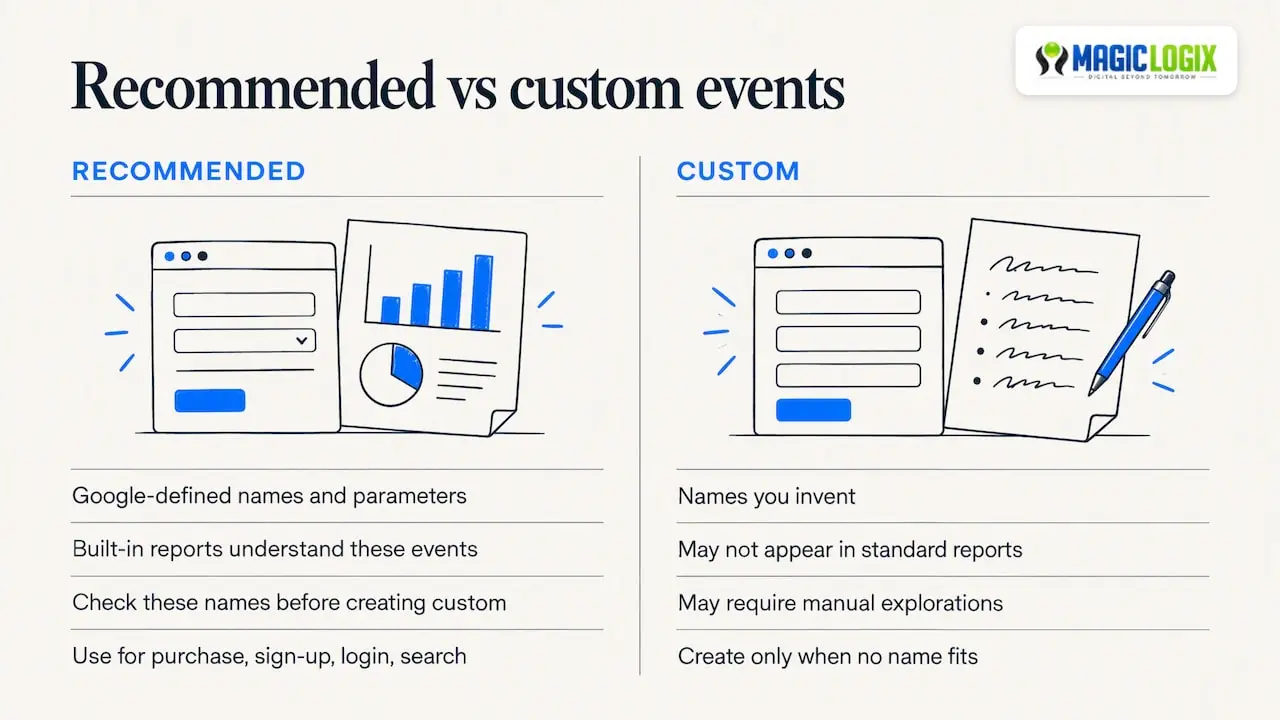
This is where setups quietly go wrong. When you need to track something, check Google’s list of recommended events first. Recommended events come with set names and parameters, which means GA4’s built-in reports can understand them. A custom event with a name you invented often shows up nowhere in standard reports, and you end up building explorations by hand just to read it.
A simple rule: if the action is a purchase, sign-up, login, search, add-to-cart or similar, look for the recommended name before you type anything. Create a custom event only when nothing fits, and write it in a shared naming sheet so the next person knows what it means.
Naming discipline also pays off when different people need different views of the same data. Some industry software, such as these role-based dashboard views for dealership teams, shows how one dataset can be presented differently for each role. In GA4 you get a similar result by keeping event names consistent so reports and Looker Studio views stay readable.
Check: every custom event on your list has a one-line reason explaining why no recommended event would do.
Step 6: Mark your key events
GA4 lets you flag specific events as key events, which are the actions that signal real business value. Pick them from the outcomes you wrote down earlier. Typical examples:
- Lead form submission
- Click on a phone number or email link
- Booked appointment or demo request
- Purchase
Resist flagging everything. If twenty events are key events, none of them mean much. Three to five is a healthy range for most small and mid-size businesses, and that is our working guideline rather than a Google rule.
If the idea of conversions is new to you, our explainer on what conversion tracking is gives the wider context, and our guide to the conversion funnel shows where each key event sits in the buyer’s path.
Check: each key event fires once per real action. Submit a test form and confirm you see one event, not two.
Step 7: Set up ecommerce tracking
If you sell online, the recommended ecommerce events matter most. At a minimum, plan for the product view, add to cart, begin checkout and purchase steps, each sending item details (name, ID, price, quantity) and the transaction value and currency. Google lists these in its recommended events reference.
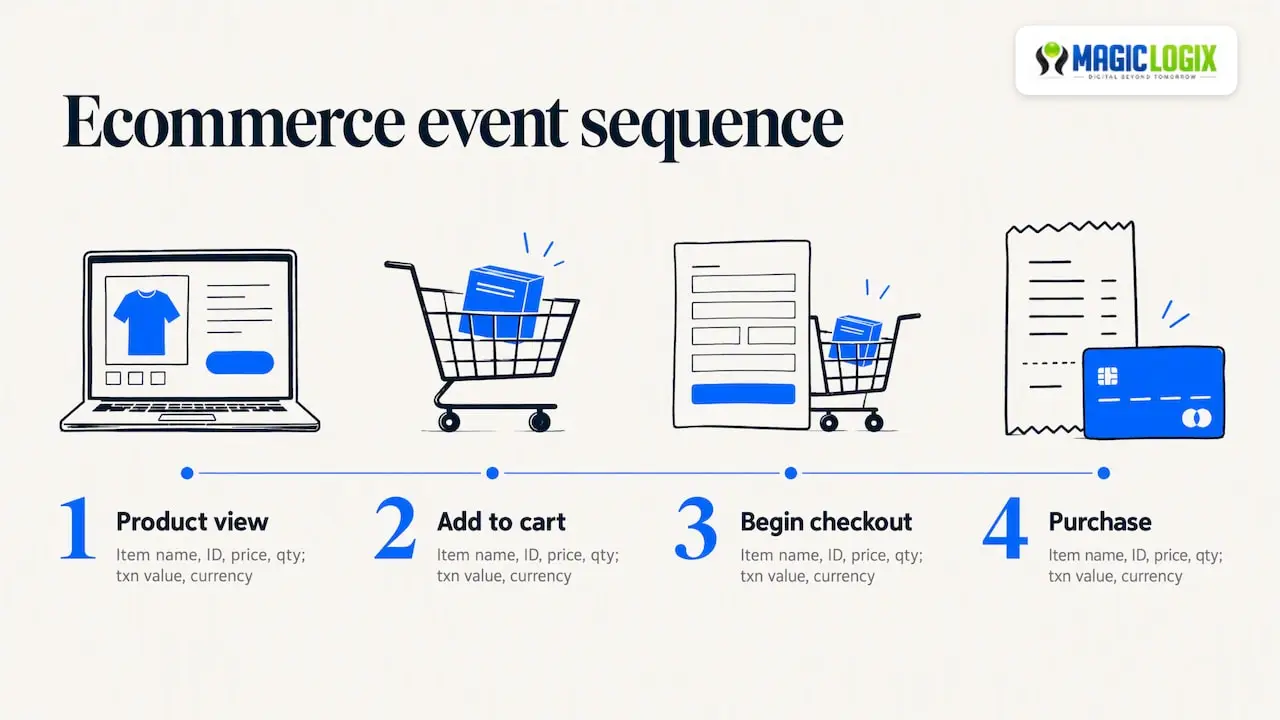
Most ecommerce platforms offer an official integration or plugin that sends these events. Others need a developer to push the data layer to your tag manager. Either way, confirm that revenue in GA4 is close to revenue in your store admin. Small gaps are normal because of consent banners, ad blockers and refunds. Large gaps mean a tag is double-firing or missing.
Check: place a real or test order and compare the transaction ID, value and currency in GA4 with the order in your store.
Step 8: Exclude internal traffic
Your staff, agency and developers visit the site constantly, and their visits inflate engagement and sometimes conversions. Google’s help page on how to filter out internal traffic explains that you can define IP addresses or ranges to exclude. Note that it works for websites only, not for app users.
Also read how data filters behave. They apply from the point of creation forward and do not change historical data. Google’s documentation describes a testing state, so use it to confirm the filter catches only what you intend before you make it active, because excluded data cannot be recovered.
Check: after the filter is active, browse your site from the office network and confirm those visits no longer appear in your reports.
Step 9: Review data retention and other property settings
Open the data settings area of the property and check the event data retention setting. The default is short, and it limits how far back you can run detailed explorations. Extend it to the longest period offered to you. Reports built on standard aggregated data are less affected, but custom analysis needs the raw detail.
While you are there, review Google signals and data sharing options with your privacy requirements in mind, and confirm who has access to the property. Remove former employees and agencies you no longer work with.
Check: retention is extended, and every user on the property is someone who should be there.
Step 10: Tag your campaigns consistently
GA4 can only attribute traffic well if your links tell it where they came from. Use consistent UTM parameters on email, social, paid and partner links. Agree on lowercase names and a short list of allowed values for source, medium and campaign, or the same channel will appear under five spellings. Our guide on how to use UTM parameters includes naming conventions you can adapt.
Check: click a tagged link and look for the campaign in Realtime.
Step 11: Link the other tools you rely on
Link Google Ads if you run paid search, and Search Console if you care about organic performance. Linking lets you see ad spend and query data next to on-site behavior. Google’s checklist on getting more useful data out of Analytics is aimed at marketers and advertisers and lists further steps once data collection is running.
If you run paid campaigns, pair this with our guides to paid search management and PPC optimization so that the numbers you collect lead to budget decisions.
Check: each linked product shows as connected, and data from it appears within a day or two.
Step 12: Test before you trust
Google recommends monitoring events after setup with the DebugView tool and the Realtime report. Run through every key action yourself: submit the form, click the phone link, add an item to the cart, complete a test purchase. For each action, confirm:
- The event name is right.
- It fires once.
- Parameters such as value, currency and item details are populated.
- It appears as a key event if you flagged it.
Then wait a few days and compare GA4 against a second source: your CRM lead count, your store orders, or your ad platform clicks. Do not expect an exact match. Do expect the same direction and a gap you can explain.
Quick reference: setup checklist you can copy
| # | Task | Done when |
|---|---|---|
| 1 | Account and property created | Name, time zone and currency are correct |
| 2 | Web data stream added | Measurement ID recorded |
| 3 | Tag installed | Your visit appears in Realtime |
| 4 | Enhanced measurement reviewed | Each toggle is deliberate |
| 5 | Recommended events used first | Custom events each have a stated reason |
| 6 | Key events marked | Three to five, each firing once |
| 7 | Ecommerce events verified | Test order matches store admin |
| 8 | Internal traffic excluded | Office visits no longer counted |
| 9 | Retention and access reviewed | Retention extended, user list clean |
| 10 | UTM convention agreed | Tagged click appears in Realtime |
| 11 | Google Ads and Search Console linked | Data flows in |
| 12 | End-to-end test complete | Numbers cross-checked against a second source |
When to consider server-side tagging
Once the basics are stable, larger teams often look at server-side tagging. Google explains that a server container sits between the user and your vendors, giving you more control over what data is shared and reducing third-party code in the browser. It adds hosting and maintenance work, so treat it as a second-phase project, not a day-one requirement. If your site is small and your tracking needs are simple, a clean client-side setup is a perfectly reasonable place to stay.
Our perspective: measure less, but trust it more
We see the same pattern in analytics setups across businesses of every size. The tag is installed, dozens of events are firing, and nobody can say which numbers the business actually relies on. The fix is rarely more tracking. It is a short list of outcomes, clean names and a test routine you repeat whenever the site changes.
Two habits matter most. First, treat a redesign, a new checkout or a new form plugin as an analytics event too, and retest your key events afterward. Tracking breaks quietly during site changes. Second, connect measurement to decisions: if a number would not change what you do next quarter, it probably does not belong on the main dashboard.
Analytics also feeds how you approach search. As more discovery happens through AI-driven answers, knowing which pages bring qualified visitors helps you decide where to invest. Be realistic about it, though. No one can promise how AI platforms will cite or send traffic to your site, so start by measuring what you can verify.
— Hassan Bawab
Need a hand with measurement?
If your tracking spans several sites, a store, paid campaigns and a CRM, getting it right is easier with a partner. Magic Logix builds measurement into the work we do on website design and development and search and AI visibility, so tracking is planned alongside the site, not bolted on after launch. You can start with a conversation about your goals through magiclogix.com.
Common GA4 setup mistakes to avoid
- Installing the tag twice. A plugin and a manual tag together double-count page views. Check Realtime for duplicate hits.
- Creating custom events that duplicate recommended ones. You lose built-in reporting.
- Marking every event as a key event. Signal drowns in noise.
- Skipping the internal traffic filter. Small sites feel this most, because staff visits are a large share of sessions.
- Leaving filters untested. Since data filters do not affect past data and excluded data is not recoverable, test first.
- Never revisiting the setup. Run this checklist again after every major site change.
FAQ
How long does a GA4 setup take?
A basic setup for a small site, covering account, property, stream, tag and a few key events, can be done in an afternoon. Ecommerce tracking, campaign tagging and testing usually take a few days, mostly because verifying data needs real traffic. Plan more time if a developer has to push data to your tag manager.
Do I need Google Tag Manager for GA4?
No. You can install the Google tag directly or use a platform integration. A tag manager becomes worthwhile when you expect to add or change events over time, because you can do it without editing site code each time.
What is the difference between recommended and custom events?
Recommended events use names and parameters that Google defines, so GA4 can feed them into built-in reports. Custom events are ones you define when nothing standard fits. Check the recommended list first, and create a custom event only as a last resort.
Will GA4 fix my old data if I change a setting?
No. Changes such as data filters apply from the point they are created forward and do not alter historical data. That is why the early steps, especially time zone, currency and internal traffic, are worth getting right before you begin collecting.
How do I know my GA4 setup is working?
Use Realtime and DebugView to see events as they happen, then compare GA4 totals against a second source such as your CRM or store orders. Matching exactly is unrealistic, but the trend should agree and any gap should have an explanation.
Sources
- Set up Analytics for a website and/or app, Analytics Help
- Analytics for beginners and small businesses, Google for Developers
- Set up events, Google for Developers
- About events, Analytics Help
- Recommended events, Analytics Help
- Filter out internal traffic, Analytics Help
- Data filters, Analytics Help
- Get more useful data out of Analytics, Analytics Help
- Server-side tagging fundamentals, Google for Developers